 Unstuck
Use Unstuck with your AI agent
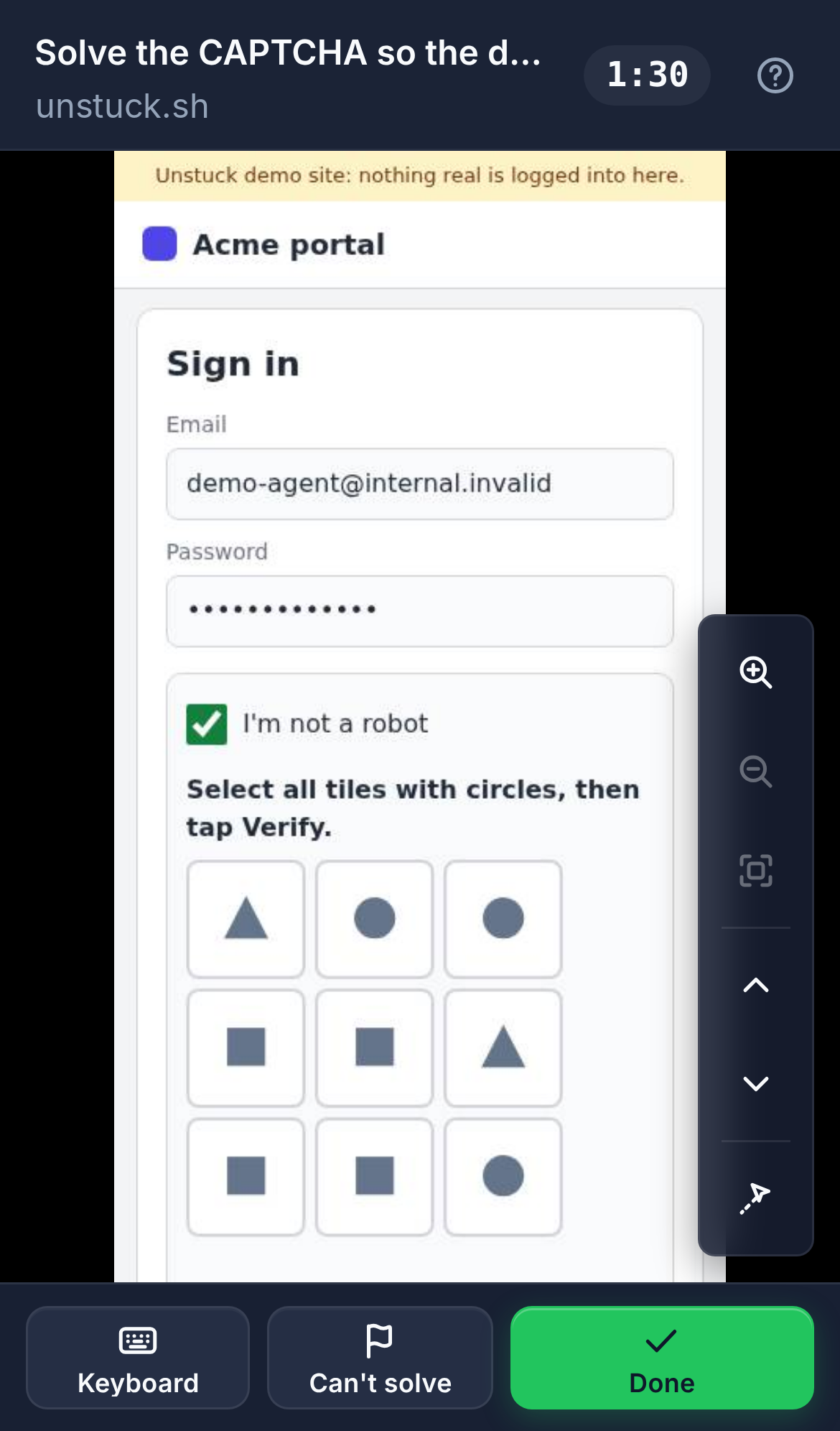
Your agent fetches a page for you. A plain download gets blocked, so it opens the page in a real browser and lands on a CAPTCHA, a login or a 2FA prompt. Instead of giving up, it asks you through Unstuck: you get a link, solve the check from your phone, tap Done, and the agent carries on in the same page.
There are two ways to set it up. Unstuck Browser is the simplest: one server that brings its own browser. The classic setup has two pieces, for when you want the agent in a Chrome you already use:
- A Chrome with a debugging port, which your agent drives through a browser MCP server (Playwright MCP in the examples below).
- The Unstuck MCP server, pointed at the same Chrome. It gives the agent one tool,
request_human_takeover.
To get the link on your phone, from anywhere, add a free Unstuck Cloud API key and pair a phone: Telegram is recommended. Without a key, Unstuck works on your own computer only.
The client instructions on this page were checked against each vendor's documentation on 17 November 2026. Clients change fast: if a step no longer matches, follow the vendor link in that section.
The simplest setup: Unstuck Browser
With --browser, the Unstuck MCP server starts a headless Chrome of its own the first time the agent browses. There is no Chrome to start and no second server. The agent reads pages with fetch_page, drives them with open, click and type, and a CAPTCHA or "verify you are human" check brings you in by itself. It needs Chrome or Chromium on your computer (npx playwright install chromium is enough).
In any client below, replace both servers with this one:
{ "mcpServers": { "unstuck": { "command": "npx", "args": ["-y", "@velmlabs/unstuck-engine", "--mcp", "--browser"] } } }In Claude Code that's claude mcp add unstuck -- npx -y @velmlabs/unstuck-engine --mcp --browser. Give it a tool timeout of at least 900 s where the client has one (Codex: tool_timeout_sec = 900). The Unstuck Browser guide has the details and a first walkthrough. The rest of this page sets up the classic two-server version.
Pick your agent
- Claude Code, the CLI, with MCP or the Unstuck plugin
- Claude Desktop
- Claude.ai and the Claude mobile app: not supported
- Codex CLI and the ChatGPT desktop app
- ChatGPT on the web and phone: not supported
- Gemini CLI and Antigravity CLI
- The Gemini app: not supported
- Cursor
- VS Code and Copilot CLI
- Devin Desktop (Windsurf)
- Cline
- OpenCode
- Goose
- pi
- Writing your own agent: use the library instead
Start Chrome with a debugging port
Unstuck attaches to a Chrome your agent already drives. Start it with port 9222 and a profile of its own:
# macOS
"/Applications/Google Chrome.app/Contents/MacOS/Google Chrome" --remote-debugging-port=9222 --user-data-dir="$HOME/.unstuck-chrome"
# Linux
google-chrome --remote-debugging-port=9222 --user-data-dir="$HOME/.unstuck-chrome"
# Windows (Command Prompt)
"C:\Program Files\Google\Chrome\Application\chrome.exe" --remote-debugging-port=9222 --user-data-dir="%USERPROFILE%\.unstuck-chrome"
A separate --user-data-dir keeps this browser apart from your everyday profile. Leave the window open while the agent works.
The configs below run two servers on that Chrome: playwright (@playwright/mcp with --cdp-endpoint http://127.0.0.1:9222) to browse, and unstuck (npx -y @velmlabs/unstuck-engine --mcp --open with UNSTUCK_CDP_URL=http://127.0.0.1:9222) to ask for help. If you prefer the Chrome DevTools MCP server, run npx -y chrome-devtools-mcp@1.13.0 --browser-url=http://127.0.0.1:9222 in place of the Playwright server.
How the link reaches you
The request_human_takeover tool waits until the person taps Done or Can't solve, or the takeover times out (10 minutes by default). While it waits, Unstuck sends the link:
- in this computer's browser:
--open, in every config on this page, opens it there; - to your paired phones, when the server has
UNSTUCK_API_KEY: a Telegram message (recommended), a phone notification or an email. See Phone alerts; - to the server's log: the MCP server's stderr and an MCP log message. Most agents don't show these in the chat; where a client keeps them in a file, its section says where.
With request_human_takeover, don't count on the agent pasting the link into the chat: it gets the tool's result only
after the takeover ends. For that, use the two-step flow below.
Let the agent show you the link (two-step flow)
Since version 0.2.9 the Unstuck MCP server has two more tools, so the agent can put the link right in the chat:
start_human_takeoverstarts the takeover and returns at once with the link (and the 6-digit code, if you require one). The agent shows them to you.- You open the link, or forward it to whoever will solve the step, then tap Start, solve it and tap Done.
wait_for_human_takeoverwaits for the result in short rounds (45 seconds by default) and the agent calls it again until it's done. Each call stays under the client's tool time limit, so you don't need to raise it.cancel_human_takeoverends it early; the link stops working.
Tell your agent once, for example: "If a page asks you to prove you're human or to log in, call start_human_takeover and show me the link, then wait for me." The tools describe themselves to the agent, so most agents pick this up without more instructions.
The one-step request_human_takeover is still there for when you're at this computer (--open) or have phone alerts
on. Only one takeover can run per tab at a time.
To add your API key, put UNSTUCK_API_KEY next to UNSTUCK_CDP_URL in the unstuck server's environment (env, envs or environment, depending on the client), or pass -e UNSTUCK_API_KEY=uk_live_… to claude mcp add.
No app needed: share the link
Phone alerts are optional. The link itself is enough: open it yourself, or forward it to whoever can solve the step, by WhatsApp, Slack, SMS or email. With Unstuck Cloud or your own relay it opens on any phone; without either, only on the computer the agent runs on.
- Link previews are safe. The page connects only when a person taps Start takeover, so a chat app's preview or an email scanner doesn't use the link up.
- One person at a time. Once someone has started, the link shows already in use on any other device.
- The link stops working when the takeover ends: the person taps Done or Can't solve, or it times out.
- Add a 6-digit code for more safety, so the link alone isn't enough. In your own code, set
requireCode: true(Pythonrequire_code=True): the code arrives in youronLinkhandler'scodefield, apart from the link, and you send the two by different channels. Over MCP, withUNSTUCK_REQUIRE_CODE=1the code is never in the link, stderr or phone alerts:start_human_takeoverreturns it to the agent (to show you, so you can send it separately), andrequest_human_takeoverputs it only in an MCP log message.
Claude Code
Config: run these two commands. They add both servers to the current project; add --scope user after claude mcp add to use them in every project.
#!/bin/sh
# Add Unstuck to Claude Code. Chrome must be running with --remote-debugging-port=9222 (see README.md).
claude mcp add unstuck -e UNSTUCK_CDP_URL=http://127.0.0.1:9222 -- npx -y @velmlabs/unstuck-engine --mcp --open
# The Playwright MCP server drives the same Chrome, so the agent can browse and Unstuck can take over its tab.
claude mcp add playwright -- npx -y @playwright/mcp@0.0.85 --cdp-endpoint http://127.0.0.1:9222
Check: claude mcp list shows ✔ Connected for both; inside Claude Code, /mcp lists their tools.
Or install the plugin. It adds the Unstuck MCP server and the Unstuck skill, which teaches the agent when and how to ask for help:
/plugin marketplace add velmlabs/unstuck
/plugin install unstuck@unstuck
The plugin's server has no browser address set, so tell the agent where Chrome is (as in the prompt below), and add the Playwright server with the second command above.
Try: "Open the pricing page on example-shop.com and list the plans. Chrome is at http://127.0.0.1:9222. If you hit a CAPTCHA or a login, call request_human_takeover with the reason and wait for it."
A tool call that runs longer than two minutes moves to a background task, and Claude may carry on with other work while the person solves the step. To make it wait, start Claude Code with CLAUDE_CODE_MCP_AUTO_BACKGROUND_MS=0, or say "wait for the takeover to finish" in your prompt.
Vendor docs: Claude Code MCP.
Claude Desktop
Config: open Settings → Developer → Edit Config. That opens claude_desktop_config.json:
- macOS:
~/Library/Application Support/Claude/claude_desktop_config.json - Windows:
%APPDATA%\Claude\claude_desktop_config.json - Linux:
~/.config/Claude/claude_desktop_config.json
Merge both servers into its mcpServers, then quit Claude Desktop completely and start it again:
{
  "mcpServers": {
    "playwright": {
      "command": "npx",
      "args": [
        "-y",
        "@playwright/mcp@0.0.85",
        "--cdp-endpoint",
        "http://127.0.0.1:9222"
      ]
    },
    "unstuck": {
      "command": "npx",
      "args": [
        "-y",
        "@velmlabs/unstuck-engine",
        "--mcp",
        "--open"
      ],
      "env": {
        "UNSTUCK_CDP_URL": "http://127.0.0.1:9222"
      }
    }
  }
}
Check: click + at the bottom of the chat box, then Connectors: playwright and unstuck are listed with their tools.
Where the link is logged: each server's stderr goes to mcp-server-unstuck.log in ~/Library/Logs/Claude (macOS), %APPDATA%\Claude\logs (Windows) or ~/.config/Claude/logs (Linux).
Try: "Open example-shop.com, sign in and find my last order. When the site asks for a password, a code or a CAPTCHA, call request_human_takeover."
Unstuck has no desktop extension (.mcpb) yet; use the config file.
Vendor docs: Connect to local MCP servers, Local MCP servers on Claude Desktop.
Claude.ai and the Claude mobile app
Not supported. Claude.ai and the mobile apps only add remote MCP servers by URL (custom connectors), and Unstuck runs on the computer next to your browser, so there is no URL to add. Local servers from claude_desktop_config.json aren't available on claude.ai. Use Claude Desktop or Claude Code on your computer; you can still solve the takeover from your phone.
Vendor docs: Custom connectors using remote MCP.
Codex CLI and the ChatGPT desktop app
The Codex CLI, the ChatGPT desktop app and the Codex IDE extension share one config file, ~/.codex/config.toml (or .codex/config.toml in a trusted project).
Config: merge this into the file:
# ~/.codex/config.toml: read by the Codex CLI, the ChatGPT desktop app and the Codex IDE extension.
# Chrome must be running with --remote-debugging-port=9222 (see README.md).
[mcp_servers.playwright]
command = "npx"
args = ["-y", "@playwright/mcp@0.0.85", "--cdp-endpoint", "http://127.0.0.1:9222"]
startup_timeout_sec = 60 # the first start downloads the package (default 10)

[mcp_servers.unstuck]
command = "npx"
args = ["-y", "@velmlabs/unstuck-engine", "--mcp", "--open"]
startup_timeout_sec = 60
tool_timeout_sec = 900 # a person may take minutes (default 60, which would end the takeover early)

[mcp_servers.unstuck.env]
UNSTUCK_CDP_URL = "http://127.0.0.1:9222"
tool_timeout_sec matters: Codex stops a tool call after 60 seconds by default, which would end the takeover before the person is done. codex mcp add unstuck --env UNSTUCK_CDP_URL=http://127.0.0.1:9222 -- npx -y @velmlabs/unstuck-engine --mcp --open also works, but then add tool_timeout_sec to the file yourself.
In the ChatGPT desktop app you can also add the servers in Settings → MCP servers (choose STDIO); it writes the same file.
Check: codex mcp list in a terminal, or /mcp in the Codex terminal UI or the desktop app's composer.
Try: "Download the latest invoice from portal.example.com. If a page blocks you with a CAPTCHA or a login, call request_human_takeover with the reason."
Vendor docs: Codex MCP.
ChatGPT on the web and phone
Not supported. ChatGPT on the web uses remote MCP tools through plugins and doesn't read local config files, and Unstuck has no remote endpoint. Use the ChatGPT desktop app or the Codex CLI.
Gemini CLI
Since 2026-06-18, Gemini CLI serves paid Gemini API keys and Gemini Code Assist Standard and Enterprise; free, Google AI Pro and Ultra users move to Antigravity CLI.
Config: merge into ~/.gemini/settings.json (every project) or .gemini/settings.json (this project):
{
  "mcpServers": {
    "playwright": {
      "command": "npx",
      "args": ["-y", "@playwright/mcp@0.0.85", "--cdp-endpoint", "http://127.0.0.1:9222"]
    },
    "unstuck": {
      "command": "npx",
      "args": ["-y", "@velmlabs/unstuck-engine", "--mcp", "--open"],
      "env": {
        "UNSTUCK_CDP_URL": "http://127.0.0.1:9222"
      },
      "timeout": 900000
    }
  }
}
timeout is in milliseconds. The default, 10 minutes, equals Unstuck's own; 15 minutes lets the takeover end on its own and report timed_out.
Check: gemini mcp list, or /mcp in a session. Local servers connect only in a folder you trust.
Try: "Find the store hours on example-shop.com. If the page shows a CAPTCHA, call request_human_takeover."
Vendor docs: Gemini CLI MCP servers, the move to Antigravity CLI.
Antigravity CLI
Config: Antigravity CLI (agy) reads ~/.gemini/config/mcp_config.json (every project) or .agents/mcp_config.json (this workspace). The Antigravity editor uses the same file (agent panel → … → MCP Servers → Manage MCP Servers → View raw config). Merge:
{
  "mcpServers": {
    "playwright": {
      "command": "npx",
      "args": ["-y", "@playwright/mcp@0.0.85", "--cdp-endpoint", "http://127.0.0.1:9222"]
    },
    "unstuck": {
      "command": "npx",
      "args": ["-y", "@velmlabs/unstuck-engine", "--mcp", "--open"],
      "env": {
        "UNSTUCK_CDP_URL": "http://127.0.0.1:9222"
      },
      "timeoutSeconds": 900
    }
  }
}
timeoutSeconds replaces the default limit of 180 seconds per tool call.
Check: type /mcp in the prompt: the overlay shows each server's status.
Try: the prompt from Gemini CLI.
Vendor docs: Antigravity MCP, migrating from Gemini CLI.
The Gemini app
Not supported. Custom apps in the Gemini app (US only, personal accounts) connect to an MCP server by URL; Unstuck has none. Use Gemini CLI or Antigravity CLI.
Vendor docs: Connect custom apps for Gemini Apps.
Cursor
Config: ~/.cursor/mcp.json (every project) or .cursor/mcp.json (this project). Merge:
{
  "mcpServers": {
    "playwright": {
      "command": "npx",
      "args": [
        "-y",
        "@playwright/mcp@0.0.85",
        "--cdp-endpoint",
        "http://127.0.0.1:9222"
      ]
    },
    "unstuck": {
      "command": "npx",
      "args": [
        "-y",
        "@velmlabs/unstuck-engine",
        "--mcp",
        "--open"
      ],
      "env": {
        "UNSTUCK_CDP_URL": "http://127.0.0.1:9222"
      }
    }
  }
}
Check: open Customize in the sidebar: both servers are listed and enabled. Connection errors are in the Output panel (Cmd+Shift+U / Ctrl+Shift+U) under MCP Logs.
Try: "Open example-shop.com in the browser and check whether my order shipped. Call request_human_takeover if you need me to sign in."
Vendor docs: Cursor MCP.
VS Code and Copilot CLI
GitHub Copilot in VS Code and the Copilot CLI read the same file, ~/.copilot/mcp-config.json (or $COPILOT_HOME/mcp-config.json). For one project, use .mcp.json at the workspace root. The older .vscode/mcp.json with a servers key belongs to VS Code's deprecated Local mode; new setups use mcpServers.
Config: merge into the file:
{
  "mcpServers": {
    "playwright": {
      "type": "stdio",
      "command": "npx",
      "args": ["-y", "@playwright/mcp@0.0.85", "--cdp-endpoint", "http://127.0.0.1:9222"],
      "tools": ["*"]
    },
    "unstuck": {
      "type": "stdio",
      "command": "npx",
      "args": ["-y", "@velmlabs/unstuck-engine", "--mcp", "--open"],
      "env": {
        "UNSTUCK_CDP_URL": "http://127.0.0.1:9222"
      },
      "tools": ["*"],
      "timeout": 900000
    }
  }
}
timeout is in milliseconds; Copilot's default, 30 seconds, would end the takeover early.
Check: in VS Code, run MCP: List Servers, select unstuck, then Show Output. In the Copilot CLI, /mcp show unstuck or copilot mcp get unstuck.
Try: "Open example-shop.com/account and download my last receipt. If you hit a login or a CAPTCHA, call request_human_takeover with the reason."
Vendor docs: VS Code MCP configuration, Copilot CLI MCP servers.
Devin Desktop (Windsurf)
Windsurf's docs now redirect to Devin Desktop, whose Devin Local agent shares its setup with the Devin CLI.
Config: ~/.config/devin/mcp_config.json (Windows: %APPDATA%\devin\mcp_config.json) for every project, or .devin/mcp_config.json for one. Merge:
{
  "mcpServers": {
    "playwright": {
      "command": "npx",
      "args": [
        "-y",
        "@playwright/mcp@0.0.85",
        "--cdp-endpoint",
        "http://127.0.0.1:9222"
      ]
    },
    "unstuck": {
      "command": "npx",
      "args": [
        "-y",
        "@velmlabs/unstuck-engine",
        "--mcp",
        "--open"
      ],
      "env": {
        "UNSTUCK_CDP_URL": "http://127.0.0.1:9222"
      }
    }
  }
}
Or add them with the CLI: devin mcp add -s user unstuck -- npx -y @velmlabs/unstuck-engine --mcp --open, then set UNSTUCK_CDP_URL in the file.
Check: Customize → MCPs in the Agents window, or devin mcp list.
Try: the prompt from Cursor.
We couldn't find a tool-call time limit in Devin's docs. If a takeover ends after a minute or two while the person is still solving it, raise the limit in the client.
Vendor docs: Devin MCP configuration, Devin Local customizations.
Cline
Config: in the Cline panel, click the MCP Servers icon, open Configure, then Configure MCP Servers. That opens Cline's cline_mcp_settings.json (the Cline CLI uses ~/.cline/data/settings/cline_mcp_settings.json). Merge:
{
  "mcpServers": {
    "playwright": {
      "command": "npx",
      "args": [
        "-y",
        "@playwright/mcp@0.0.85",
        "--cdp-endpoint",
        "http://127.0.0.1:9222"
      ]
    },
    "unstuck": {
      "command": "npx",
      "args": [
        "-y",
        "@velmlabs/unstuck-engine",
        "--mcp",
        "--open"
      ],
      "env": {
        "UNSTUCK_CDP_URL": "http://127.0.0.1:9222"
      }
    }
  }
}
Check: both servers show their tools in the MCP Servers view; in the CLI, cline config mcp.
Try: the prompt from Cursor.
Cline's docs don't give the default time limit for a tool call. If the takeover ends early, raise the request timeout in Cline's MCP settings.
Vendor docs: Configuring MCP servers in Cline.
OpenCode
Config: ~/.config/opencode/opencode.json (every project) or opencode.json in the project. Servers go under mcp.servers, with the command as one array:
{
  "$schema": "https://opencode.ai/config.json",
  "mcp": {
    "servers": {
      "playwright": {
        "type": "local",
        "command": ["npx", "-y", "@playwright/mcp@0.0.85", "--cdp-endpoint", "http://127.0.0.1:9222"]
      },
      "unstuck": {
        "type": "local",
        "command": ["npx", "-y", "@velmlabs/unstuck-engine", "--mcp", "--open"],
        "environment": {
          "UNSTUCK_CDP_URL": "http://127.0.0.1:9222"
        }
      }
    }
  }
}
Check: opencode mcp list shows connected; inside OpenCode, /mcps.
Try: "Fetch the changelog from example.com/changelog. If it's blocked, open it in the browser; if you hit a CAPTCHA, call request_human_takeover."
Vendor docs: OpenCode MCP servers.
Goose
Config: merge into ~/.config/goose/config.yaml, or add each server with goose configure → Add Extension → Command-Line Extension:
# Merge into ~/.config/goose/config.yaml. Chrome must be running with --remote-debugging-port=9222 (see README.md).
extensions:
  playwright:
    name: playwright
    type: stdio
    cmd: npx
    args: ["-y", "@playwright/mcp@0.0.85", "--cdp-endpoint", "http://127.0.0.1:9222"]
    enabled: true
    timeout: 300
  unstuck:
    name: unstuck
    type: stdio
    cmd: npx
    args: ["-y", "@velmlabs/unstuck-engine", "--mcp", "--open"]
    envs:
      UNSTUCK_CDP_URL: "http://127.0.0.1:9222"
    enabled: true
    timeout: 900 # seconds: a person may take minutes
timeout is in seconds.
Check: goose configure → Toggle Extensions shows both as enabled; in Goose Desktop, they're under Extensions in the sidebar.
Try: the prompt from OpenCode.
Vendor docs: Using extensions.
pi
pi (npm install -g @earendil-works/pi-coding-agent, formerly @mariozechner/pi-coding-agent) supports MCP servers itself.
Config: ~/.pi/agent/mcp.json (every project) or .pi/mcp.json (a trusted project). Merge:
{
  "mcpServers": {
    "playwright": {
      "command": "npx",
      "args": ["-y", "@playwright/mcp@0.0.85", "--cdp-endpoint", "http://127.0.0.1:9222"]
    },
    "unstuck": {
      "command": "npx",
      "args": ["-y", "@velmlabs/unstuck-engine", "--mcp", "--open"],
      "env": {
        "UNSTUCK_CDP_URL": "http://127.0.0.1:9222"
      },
      "timeout": 900
    }
  }
}
timeout is in seconds; pi's default, 60, would end the takeover early. pi mcp add unstuck --env UNSTUCK_CDP_URL=http://127.0.0.1:9222 -- npx -y @velmlabs/unstuck-engine --mcp --open also works, but then add timeout to the file yourself.
Check: pi mcp list shows each server's state and tools; in a running session, /reload loads changes and /mcp shows connections.
Where the link is logged: pi appends MCP log messages, the takeover link among them, to ~/.pi/agent/mcp.log.
Try: the prompt from OpenCode.
Vendor docs: pi MCP servers.
Using our library instead
When you write the agent yourself (with the OpenAI Agents SDK, the Claude Agent SDK, LangChain, browser-use or your own loop), skip MCP: call takeover() from your code and expose it to the model as a tool. Guides: Playwright, Puppeteer, AI agents (browser-use and Stagehand), Cloudflare Workers and the agent skill.
In TypeScript, a tool is a function your framework calls with the model's arguments:
import type { Page } from 'playwright';
import { Unstuck } from '@velmlabs/unstuck';

const unstuck = new Unstuck(); // reads UNSTUCK_API_KEY when it is set

// Register this with your framework as a tool named ask_human that takes a reason.
export async function askHuman(page: Page, reason: string): Promise<string> {
  const result = await unstuck.takeover(page, { reason });
  return `The person finished: ${result.status}. Look at the page again before you continue.`;
}
In Python, the browser-use version:
@tools.action(
    "Ask a human to take over the browser: for a CAPTCHA, a login, a 2FA code or anything you can't do. "
    "Give the reason and the URL of the page you're stuck on."
)
async def ask_human(reason: str, url: str) -> str:
    async with async_playwright() as p:
        # The same Chrome browser-use is driving; take over the tab the agent is stuck on.
        browser = await p.chromium.connect_over_cdp(CDP_URL)
        tabs = [pg for ctx in browser.contexts for pg in ctx.pages if pg.url.startswith(("http://", "https://"))]
        matching = [pg for pg in tabs if pg.url.startswith(url) or url.startswith(pg.url)]
        if not matching:
            return f"No open tab is on {url}; check the URL and ask again."
        page = matching[-1]
        print("Taking over", page.url, flush=True)

        def on_link(link):
            print(f"\n{link.reason}. Open this link:\n{link.url}\n", flush=True)

        async with Unstuck(on_link=on_link) as unstuck:
            result = await unstuck.takeover(page, reason=reason, timeout_s=600)
    print(f"Takeover {result.status} after {result.duration_s}s", flush=True)
    return f"The human finished: {result.status}. Look at the page again before continuing."
To send the link somewhere yourself, pass onLink (TypeScript) or on_link (Python). This handler from the Cloudflare Agents example posts it to a Slack or Discord webhook; any HTTPS endpoint that relays to WhatsApp or SMS works the same way:
/**
 * An onLink handler that POSTs the link to an incoming webhook: `text` for Slack-style webhooks, `content` for Discord.
 * The link carries the session's secret: it goes only to this webhook, never to the agent's state or the log.
 */
function linkWebhook(webhookUrl: string): (link: TakeoverLink) => Promise<void> {
  if (new URL(webhookUrl).protocol !== 'https:') throw new UnstuckConfigError('LINK_WEBHOOK_URL must be an https:// URL');
  return async ({ url, reason, sessionId, expiresAt }) => {
    const text = `A person is needed: ${reason}\n${url}`;
    try {
      const res = await fetch(webhookUrl, {
        method: 'POST',
        headers: { 'content-type': 'application/json' },
        body: JSON.stringify({ text, content: text, url, reason, sessionId, expiresAt }),
        signal: AbortSignal.timeout(5000),
      });
      if (!res.ok) console.error(`LINK_WEBHOOK_URL answered ${res.status} (session ${sessionId})`);
    } catch (e) {
      // Name the error only: its message could quote the webhook's address or the link.
      console.error(`LINK_WEBHOOK_URL failed: ${e instanceof Error ? e.name : 'error'} (session ${sessionId})`);
    }
  };
}
Then new Unstuck({ onLink: linkWebhook(process.env.LINK_WEBHOOK_URL!) }).
Troubleshooting
The agent doesn't see the tool. Run the client's check command from its section. Restart the client after editing its config (Claude Desktop needs a full quit). Make sure the file is valid JSON, TOML or YAML and that you merged the servers into the existing file rather than adding a second top-level object. Run npx -y @velmlabs/unstuck-engine --version in a terminal to confirm Node.js and npx work.
The takeover fails: no browser, or nothing on port 9222. Chrome must be running with --remote-debugging-port=9222 before the agent calls the tool. Open http://127.0.0.1:9222/json/version in another browser: it should show JSON. If not, quit the Chrome windows that use that profile and start it again with the command above. To check that Unstuck can work with it, run npx -y @velmlabs/unstuck-engine doctor --cdp http://127.0.0.1:9222.
The takeover ends after a minute or so. Your client stopped the tool call, which also ends the takeover. Raise its tool timeout as shown in its section.
The link was made but no phone alert came. Phone alerts need Unstuck Cloud: put UNSTUCK_API_KEY in the unstuck server's environment (not only in your shell), restart the client, and pair a phone or connect Telegram in your dashboard. See Phone alerts to send a test alert. Without a key, --open still opens the link on this computer.
Windows. In JSON files, write backslashes twice ("C:\\Users\\you"). If the client can't start npx (spawn npx ENOENT), run it through cmd: "command": "cmd" with "args": ["/c", "npx", "-y", "@velmlabs/unstuck-engine", "--mcp", "--open"]. Quote Chrome's path in Command Prompt, as shown above, because it contains spaces.