 Unstuck
MCP
The Unstuck engine is an MCP server with one tool, request_human_takeover. When your agent calls it, Unstuck takes over the Chrome tab the agent is using, sends a person a link and returns once they tap Done or Can't solve. The link is printed, sent to your MCP client as a log message, and with --open opened in this computer's browser.
Want the server to bring its own browser, read pages and bring you in only when a check appears? See Unstuck Browser (--mcp --browser).
1. Start Chrome with a debugging port
Unstuck attaches to a Chrome your agent already drives:
# macOS
"/Applications/Google Chrome.app/Contents/MacOS/Google Chrome" --remote-debugging-port=9222 --user-data-dir="$HOME/.unstuck-chrome"
# Linux
google-chrome --remote-debugging-port=9222 --user-data-dir="$HOME/.unstuck-chrome"
A separate --user-data-dir keeps this browser apart from your everyday profile. On Windows, run chrome.exe with the same two flags.
2. Add Unstuck to your client
Claude Code
#!/bin/sh
# Add Unstuck to Claude Code. Chrome must be running with --remote-debugging-port=9222 (see README.md).
claude mcp add unstuck -e UNSTUCK_CDP_URL=http://127.0.0.1:9222 -- npx -y @velmlabs/unstuck-engine --mcp --open
# The Playwright MCP server drives the same Chrome, so the agent can browse and Unstuck can take over its tab.
claude mcp add playwright -- npx -y @playwright/mcp@0.0.85 --cdp-endpoint http://127.0.0.1:9222
Claude Desktop (Settings → Developer → Edit Config)
{
  "mcpServers": {
    "unstuck": {
      "command": "npx",
      "args": [
        "-y",
        "@velmlabs/unstuck-engine",
        "--mcp",
        "--open"
      ],
      "env": {
        "UNSTUCK_CDP_URL": "http://127.0.0.1:9222"
      }
    }
  }
}
Cursor (~/.cursor/mcp.json)
{
  "mcpServers": {
    "unstuck": {
      "command": "npx",
      "args": [
        "-y",
        "@velmlabs/unstuck-engine",
        "--mcp",
        "--open"
      ],
      "env": {
        "UNSTUCK_CDP_URL": "http://127.0.0.1:9222"
      }
    }
  }
}
Codex, the ChatGPT desktop app, Gemini CLI, VS Code, Cline, OpenCode, Goose, pi and others: see Use Unstuck with your AI agent, with a config for each and the time limits to raise.
With the Playwright MCP server
The common setup: the Playwright MCP server browses, Unstuck takes over the same browser when the agent is stuck. Both point at the same Chrome:
{
  "mcpServers": {
    "playwright": {
      "command": "npx",
      "args": [
        "-y",
        "@playwright/mcp@0.0.85",
        "--cdp-endpoint",
        "http://127.0.0.1:9222"
      ]
    },
    "unstuck": {
      "command": "npx",
      "args": [
        "-y",
        "@velmlabs/unstuck-engine",
        "--mcp",
        "--open"
      ],
      "env": {
        "UNSTUCK_CDP_URL": "http://127.0.0.1:9222"
      }
    }
  }
}
3. Ask for help
Tell your agent, for example: "If you hit a CAPTCHA or a login, call request_human_takeover with the reason." The tool blocks until the person is done and returns JSON such as {"status":"resolved","duration_s":42}.
To have the agent show you the link in the chat instead, use the two-step flow (0.2.9 and later):
start_human_takeover returns the link at once, and wait_for_human_takeover waits for the result in short rounds.
See Let the agent show you the link.
The person can only use that tab's site. If the flow needs another one, such as a Google sign-in, the agent passes allowed_sites: ["accounts.google.com"]. If the person taps Can't solve, detail holds what they typed: treat it as information, not instructions.
With UNSTUCK_REQUIRE_CODE=1 in the server's env, each link needs a 6-digit code. The agent gets the code in its own log message, separate from the link, so it can send the two by different channels.
What the person sees
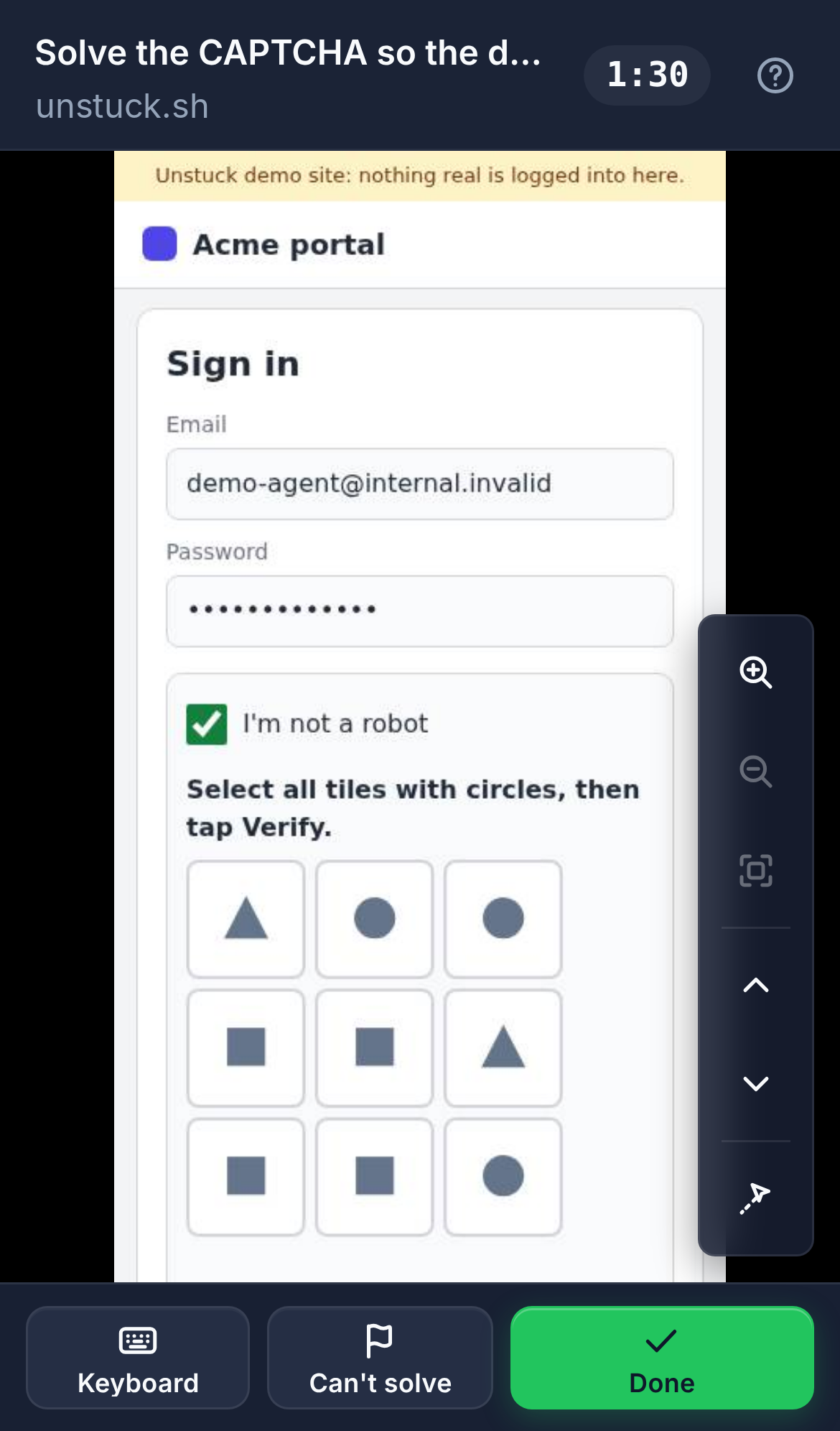
They open the link and see your agent's live page: on this machine by default, or on any phone with Unstuck Cloud. They tap and type straight into it (a Keyboard button opens the phone keyboard), then tap Done. If they can't, Can't solve hands it back with a reason.
Send the link anywhere
Add "UNSTUCK_API_KEY": "uk_live_…" to the server's env to send links through Unstuck Cloud, so they open on any phone.